Documentation · 文档
Everything about Shipdao
How we work, how to connect your store, and every page of your portal explained. Every section has a number, so “6.4” is a link you can send to anyone.
Chapter 01
How Shipdao works
What we do, what you do, and where the line between the two sits.
1.1What we do
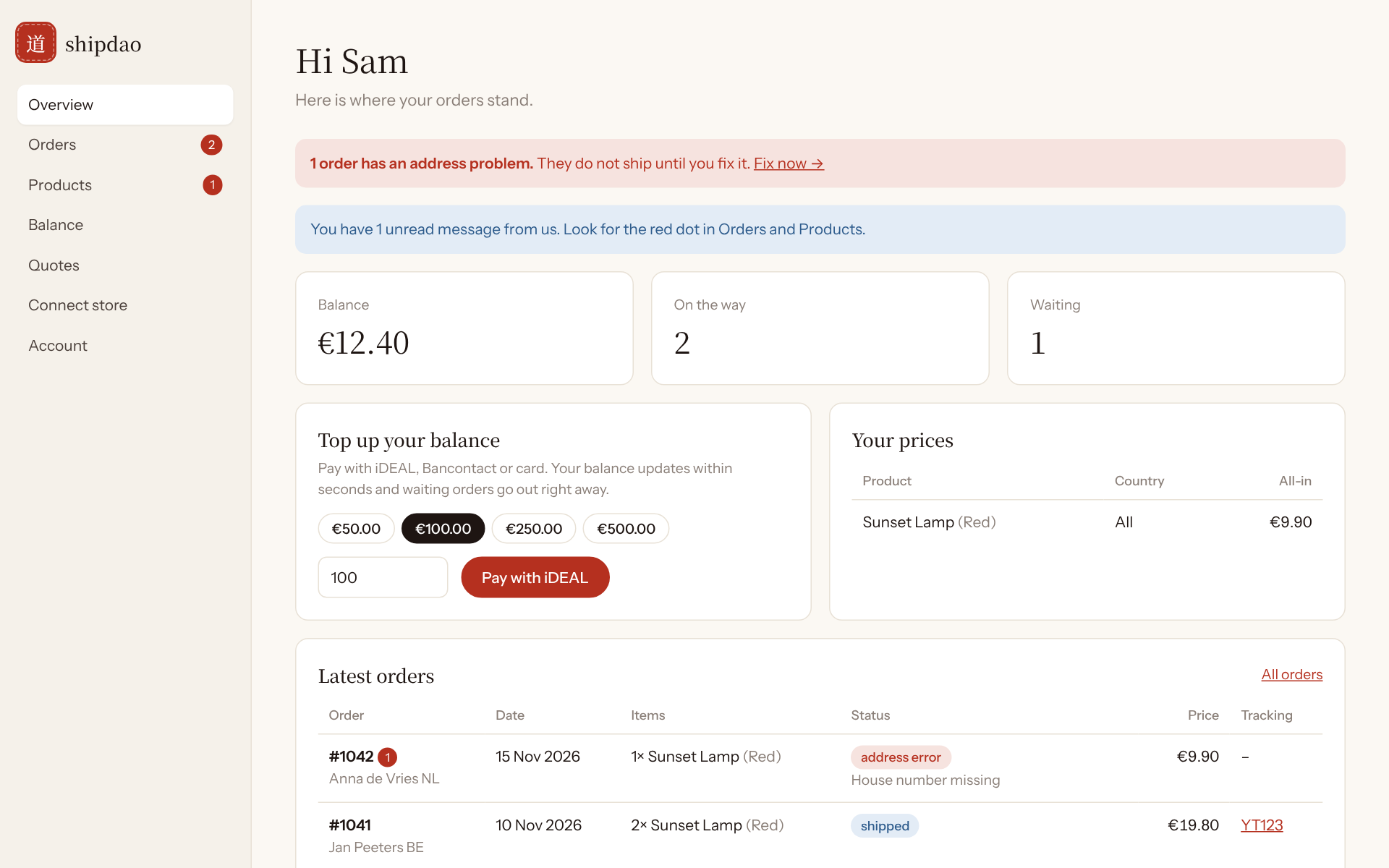
Shipdao is the fulfilment side of your store. Your shop stays in Shopify. Orders that come in there arrive with us automatically; we buy the product, check it, pack it and ship it to your customer. You see all of it, and what it costs, in your portal.
1.2The loop, in five steps
- Your customer orders in your Shopify store.
- The order appears in your portal within seconds.
- It is paid from your balance at the agreed all-in price.
- We buy, check, pack and ship it.
- The tracking number lands in Shopify and your customer gets the shipping email.
1.3What you actually do
- Keep your balance topped up.
- Make sure new products have a price before you advertise them.
- Glance at anything waiting on you: address problems and messages.
1.4What the portal is not
It is not your store. Product pages, the prices your customers pay, refunds to your customers and your marketing all stay in Shopify. Changing something in the portal never changes your storefront.
Chapter 02
Getting started
From a free price check to your first order.
2.1Free price check
Send your products through the price check on this site. Within 24 hours you get an all-in price per order, shipping included, so you know your margin before you switch.
2.2Create your account
Go to app.shipdao.nl, choose Sign up, fill in your store name, your name, email and a password, and accept the terms.
2.3Logging in
Your portal lives at app.shipdao.nl. Forgot your password? Use “Forgot password?” on the login screen. Give each colleague their own login rather than sharing one.
Chapter 03
Connecting Shopify
One click, about a minute. No app to build, no keys to send.
3.1Connect your store
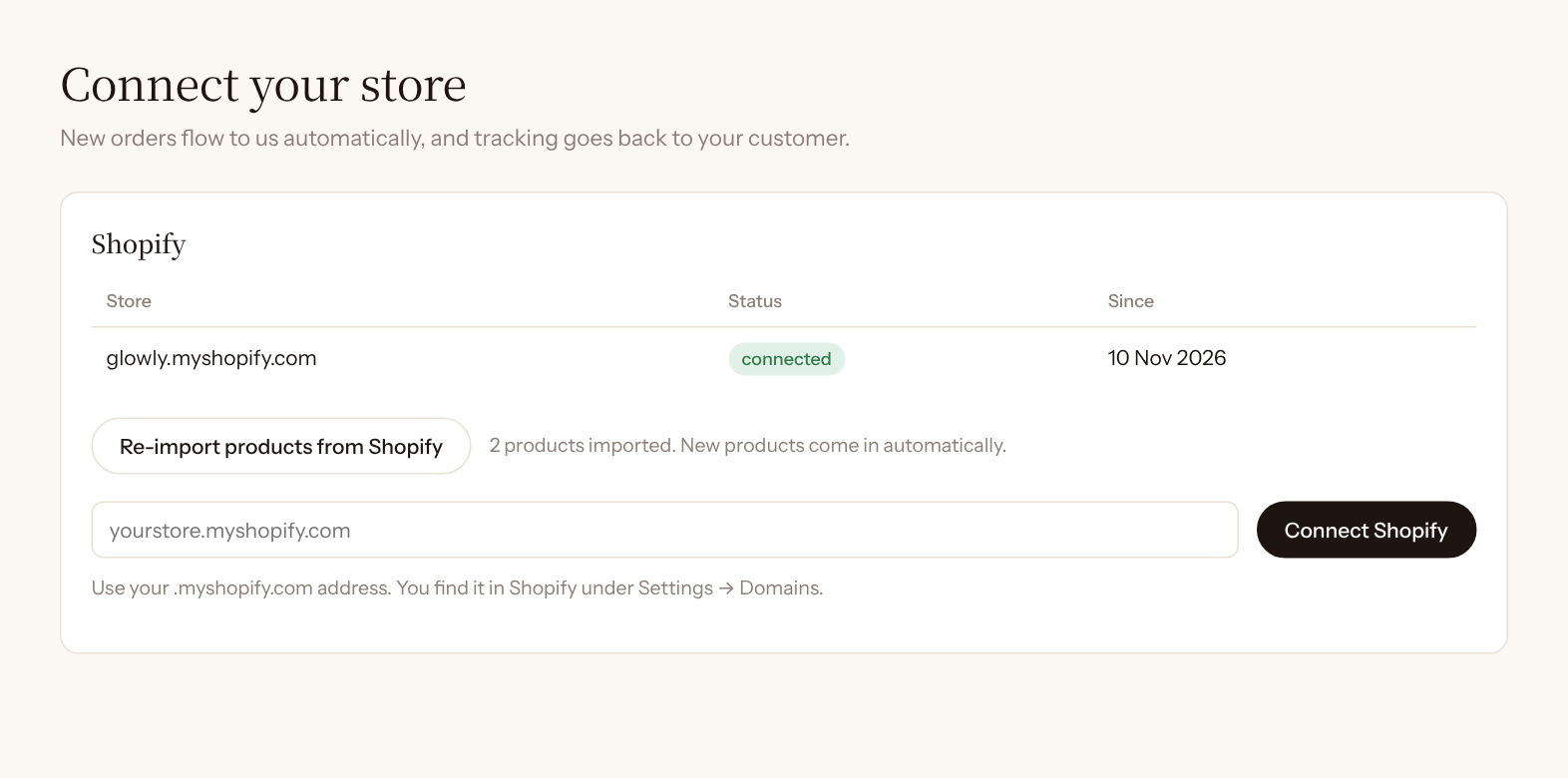
- In the portal, open Connect store.
- Type your .myshopify.com address (Shopify → Settings → Domains shows it).
- Click Connect Shopify and approve the permissions in Shopify.
- You land back in the portal with your products already imported.
3.2What we can see
Your orders (to ship them), your products (to price them) and the fulfilment of orders we handle (to add tracking). Nothing else. Uninstall the app in Shopify and the connection stops immediately.
3.3New products and more stores
Products you add or change in Shopify come in automatically; “Re-import from Shopify” pulls everything again. Running a second store? Connect it the same way; its orders use the same balance.
Chapter 04
Products and prices
A product needs an agreed price before we can ship it. This is where that happens.
4.1Your products
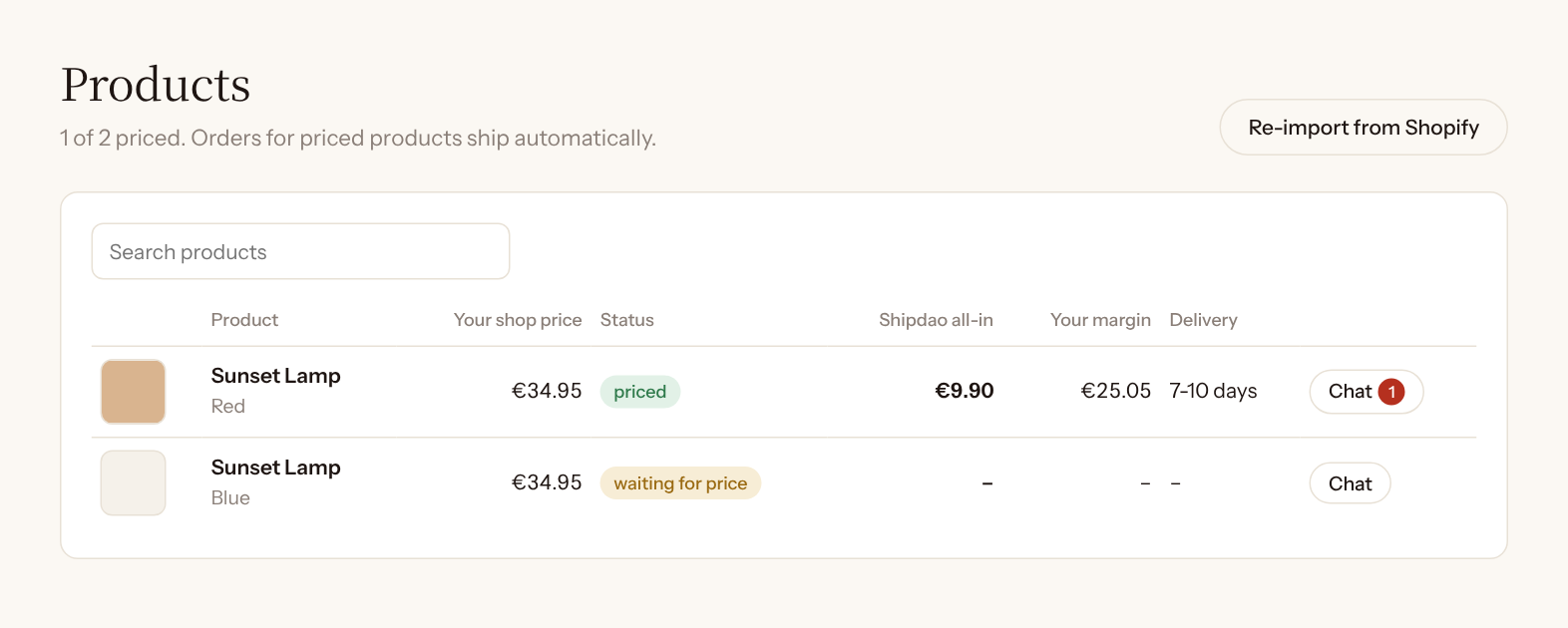
Every product and variant from your store is listed, with your shop price, our all-in price and what you keep.
- Waiting for price: imported, not priced yet. Orders for it wait.
- Being sourced: we are getting prices from our suppliers.
- Priced: agreed price. Orders for it are charged and shipped automatically.
4.2Every variant has its own price
A red and a blue version can cost different amounts, so each variant is priced separately. An order is only charged when that exact variant has a price.
4.3The order to do things in
- Add the product to Shopify.
- Check it shows up under Products.
- Wait until it says Priced.
- Then switch on your ads.
4.4Questions about a product
Every product has a chat. When we need your OK on a size, a colour or a replacement before we buy, we ask it there, with the product next to it.
Chapter 05
Balance and payments
How you pay, how much to keep in, and the file your bookkeeper wants.
5.1How the balance works
You keep a prepaid balance with us. Every order is charged from it at the agreed price the moment it comes in. If the balance runs out, orders wait until you top up, then go out automatically.
5.2Topping up
- Online: choose an amount and pay with iDEAL, Bancontact or card. Your balance updates within seconds.
- Bank transfer: transfer the amount, then press “I paid this” under Balance so we can match it.
5.3How much, how often
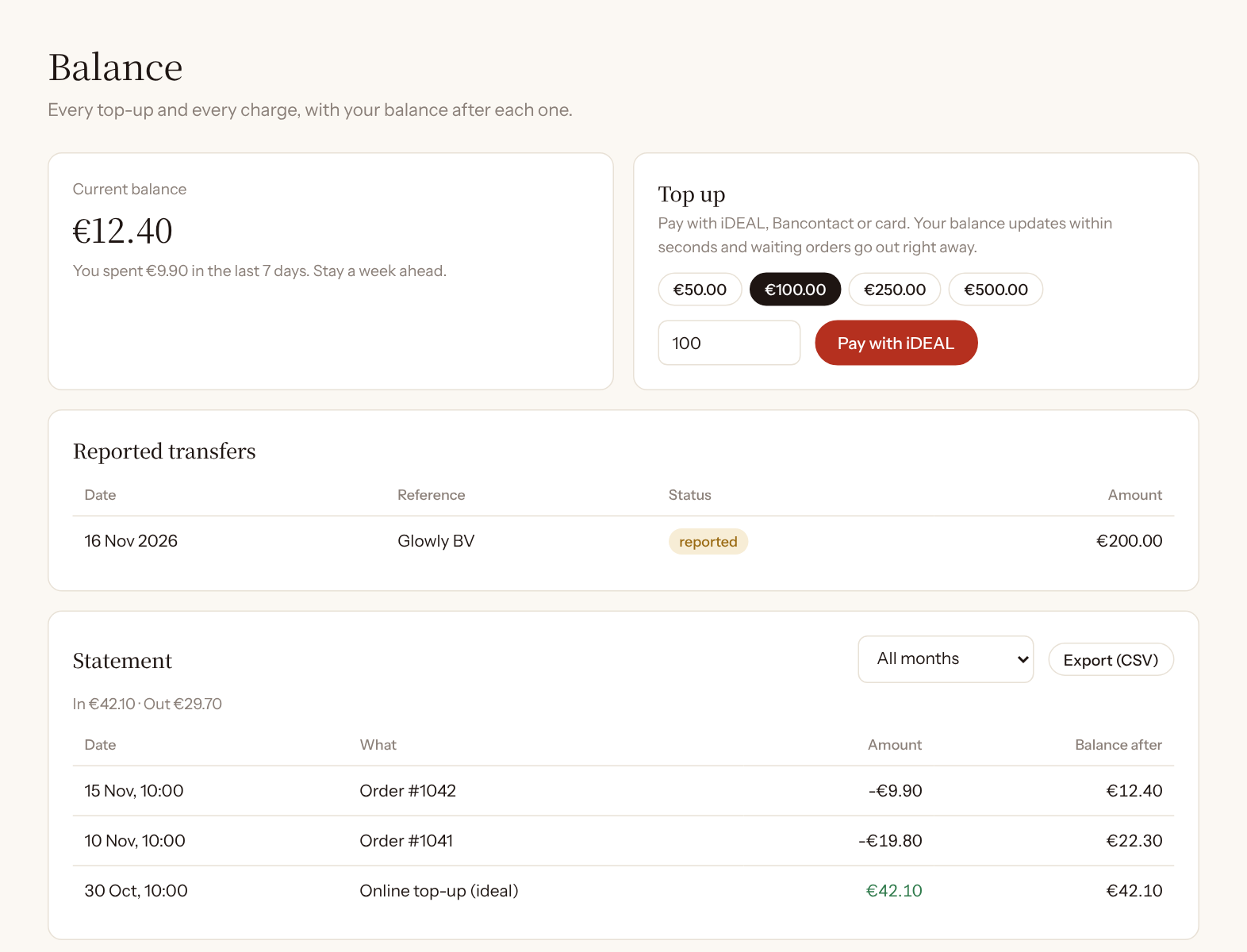
Look at what you spend in a normal week and stay a week ahead. It costs nothing to sit in credit, and an empty balance is the most common reason orders sit still.
5.4Your statement
Balance lists every top-up, charge and refund with your balance after each one. Pick a month and export it.
5.5Getting it back
Stop whenever you want. Unused balance is refunded on request, as set out in our terms.
Chapter 06
Orders
Every order from your store, with its status on our side.
6.1The orders page
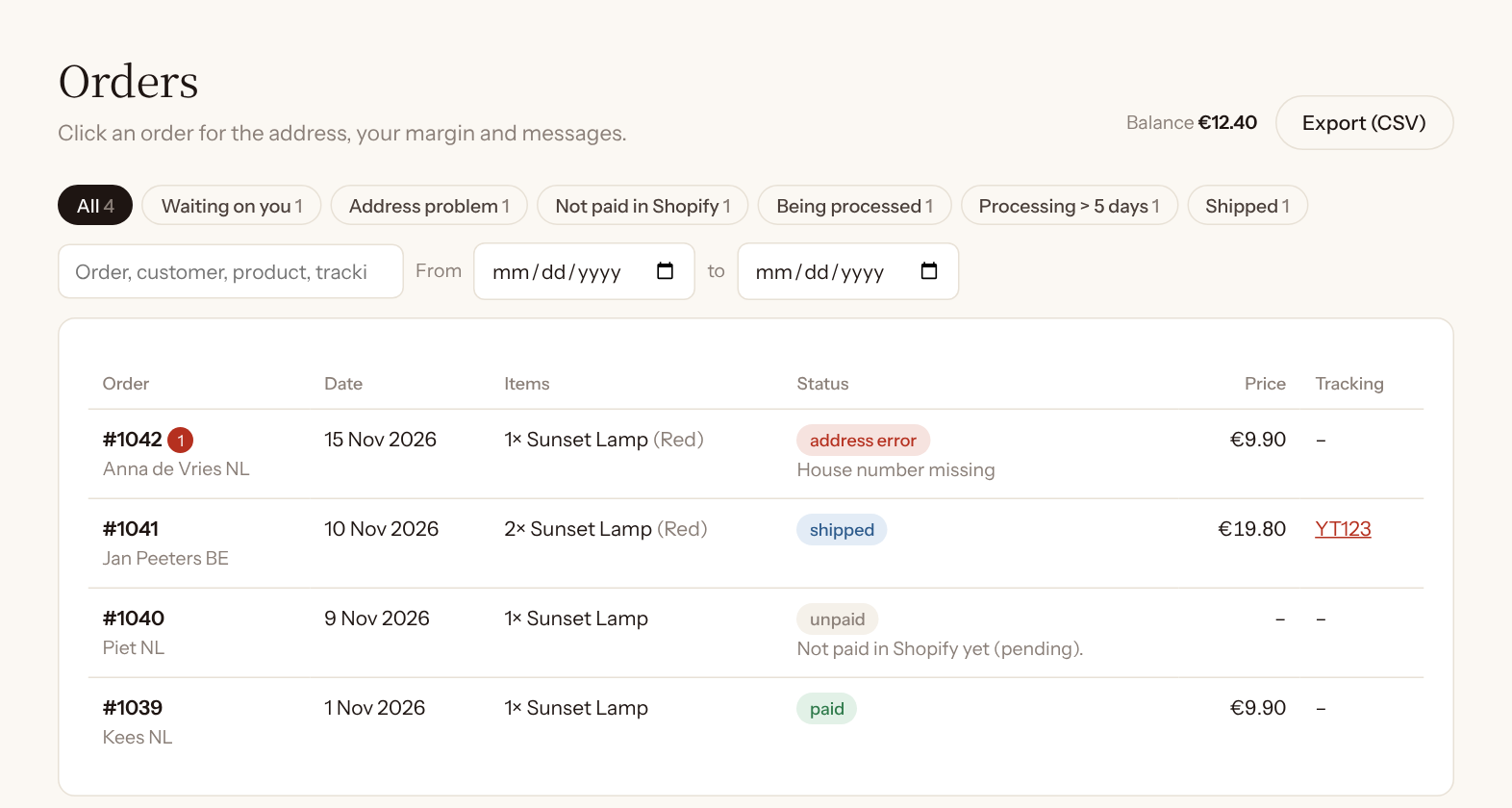
Filter by what needs you (waiting on you, address problem, processing for more than 5 days), search by order, customer, product or tracking number, pick a date range and export exactly that list.
6.2What each status means
- Not paid in Shopify: your customer has not paid yet. Nothing is charged; it ships once Shopify marks it paid.
- Paid: charged from your balance, queued for packing.
- Sent to agent: being bought and packed.
- Shipped: on its way, tracking is in Shopify.
- On hold: your balance was too low. Top up and it goes out.
- Issue: a product in it has no price yet.
- Address problem: we cannot deliver to this address.
- Cancelled: cancelled in Shopify or by us; what you paid went back to your balance.
6.3Inside an order
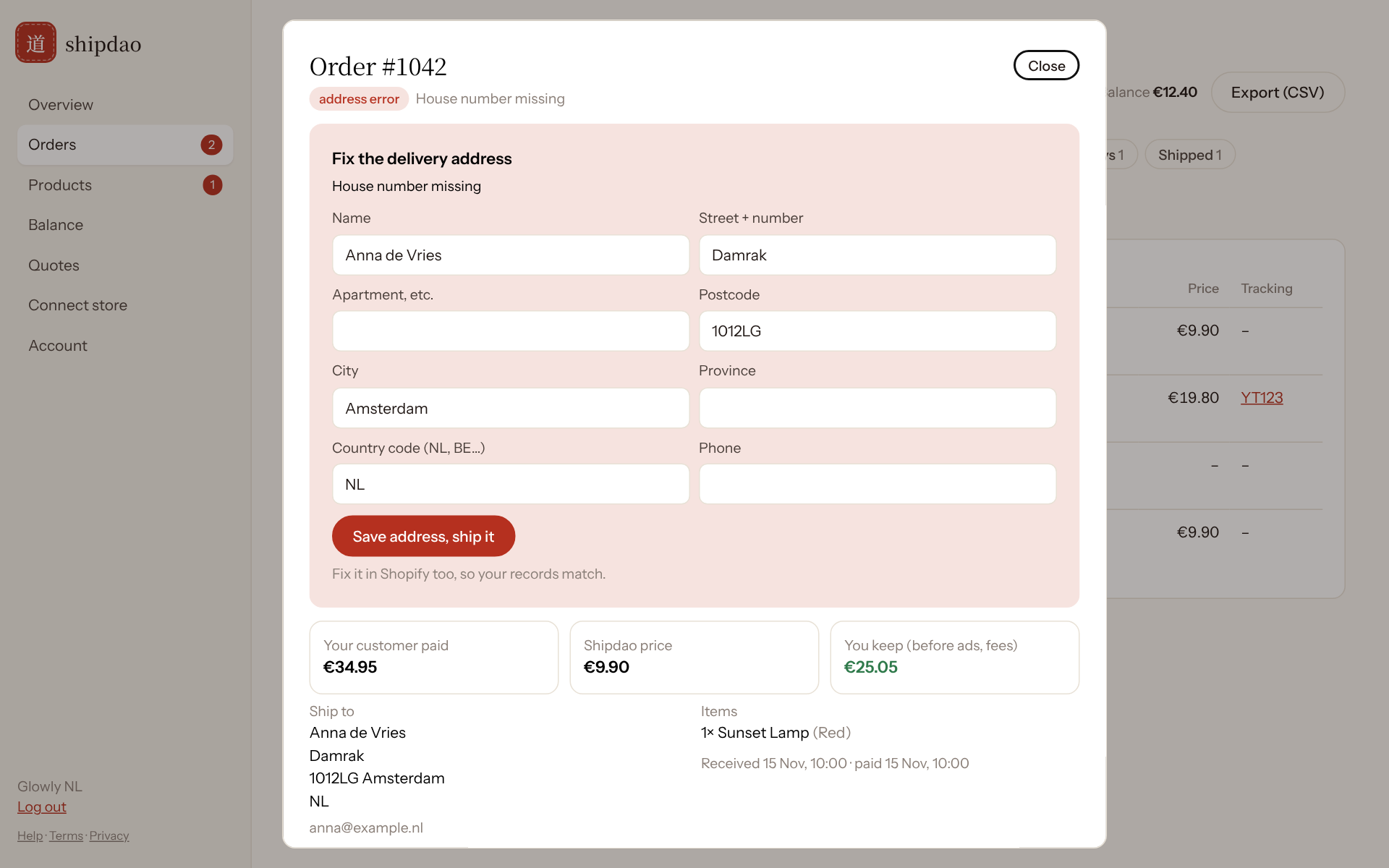
Click any order for the delivery address, what your customer paid, our price and what you keep, the tracking, quality-check photos and a chat with us about that order.
6.4Address problems
If a carrier rejects an address (missing house number, wrong postcode), the order stops and shows in red. Open it, correct the address and save: it goes straight back into the queue. These never fix themselves, so check them daily.
6.5“My order isn’t here”
Usually it is not paid in Shopify yet, it was placed before you connected your store, or it has nothing that needs shipping. Still missing? Message us with the Shopify order number.
Chapter 07
Shipping and tracking
From our warehouse to your customer’s door.
7.1Tracking goes to Shopify
When an order ships, the tracking number appears in your portal and in Shopify, and Shopify emails your customer. You do not have to do anything.
7.2“Where is my order?”
Search the order number under Orders and send your customer the tracking link. Delivery time depends on the product and the route; your quote shows it per country.
7.3Lost or damaged
Tell us with the order number and, for damage, a photo. We reship it or credit your balance, as set out in our terms.
Chapter 08
Quality checks and messages
See what goes in the box, and talk to us about it.
8.1Quality-check photos
Our team photographs what goes in the box. The photos appear with the order in your portal, so you see what your customer will get.
8.2Messages
Every order and every product has its own chat with us, so the conversation stays with the thing it is about. A red dot in the menu means something is waiting for you.
Chapter 09
Your routine
You don’t need to work the portal. You need to check it.
9.1Every day, two minutes
- Overview: anything waiting? Address problems first.
- Red dots: unread messages from us.
- Balance: enough for the next few days?
9.2Every week
- Products: anything new waiting for a price?
- Orders: anything processing for more than 5 days?
- Top up so you stay a week ahead.
9.3Every month
- Balance → pick the month → export for your bookkeeping.
- Spot-check a few orders: is your margin still what you think it is?
Chapter 10
Help
How to reach a person.
10.1Talk to a person
Message us on WhatsApp or email hello@shipdao.eu. You talk to the same person every time and hear back the same day.
10.2The fine print
Our terms, privacy statement and data processing agreement are in your portal at app.shipdao.nl.
Ready to see your price per order?
Send your products through the free price check, or create your account straight away.